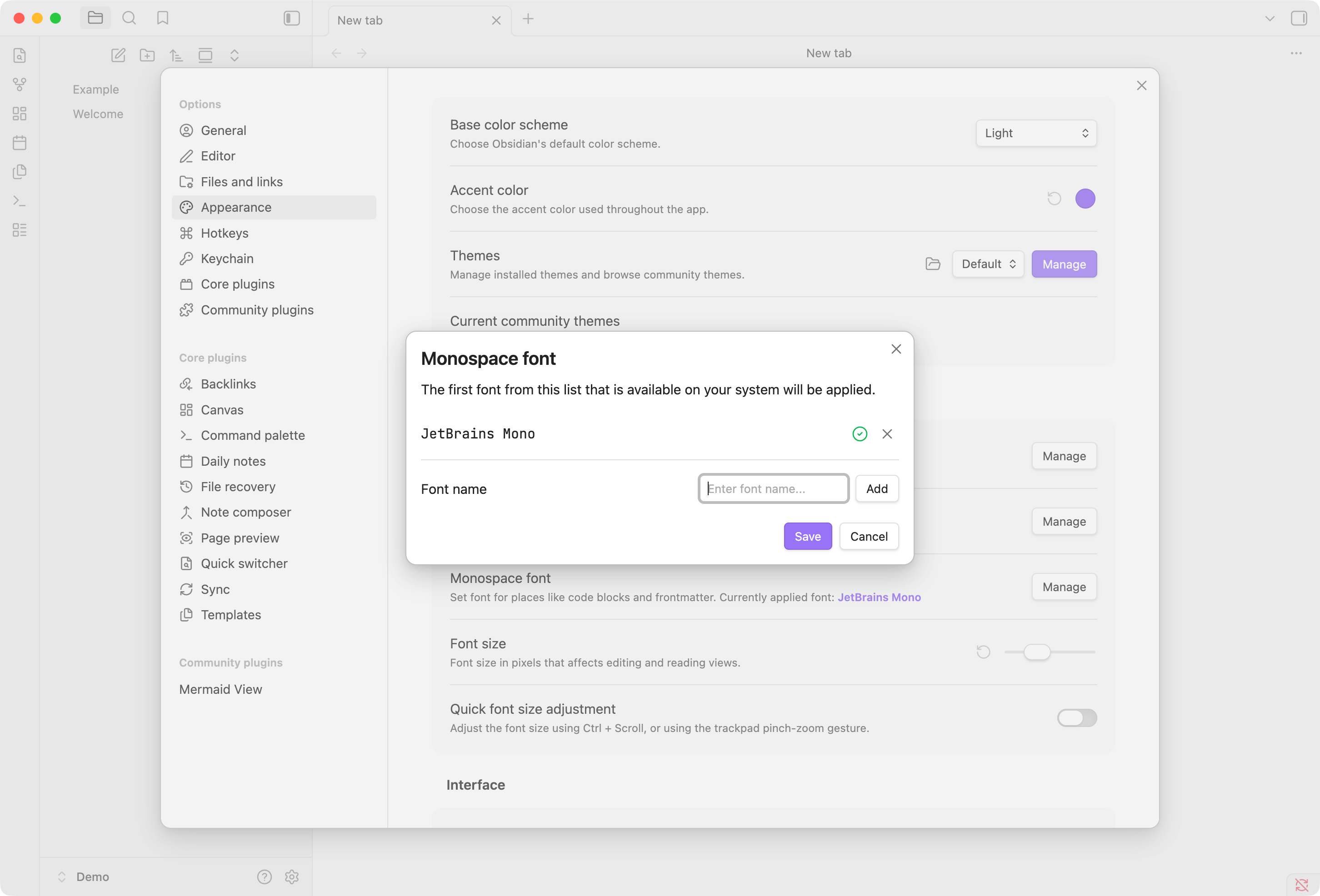
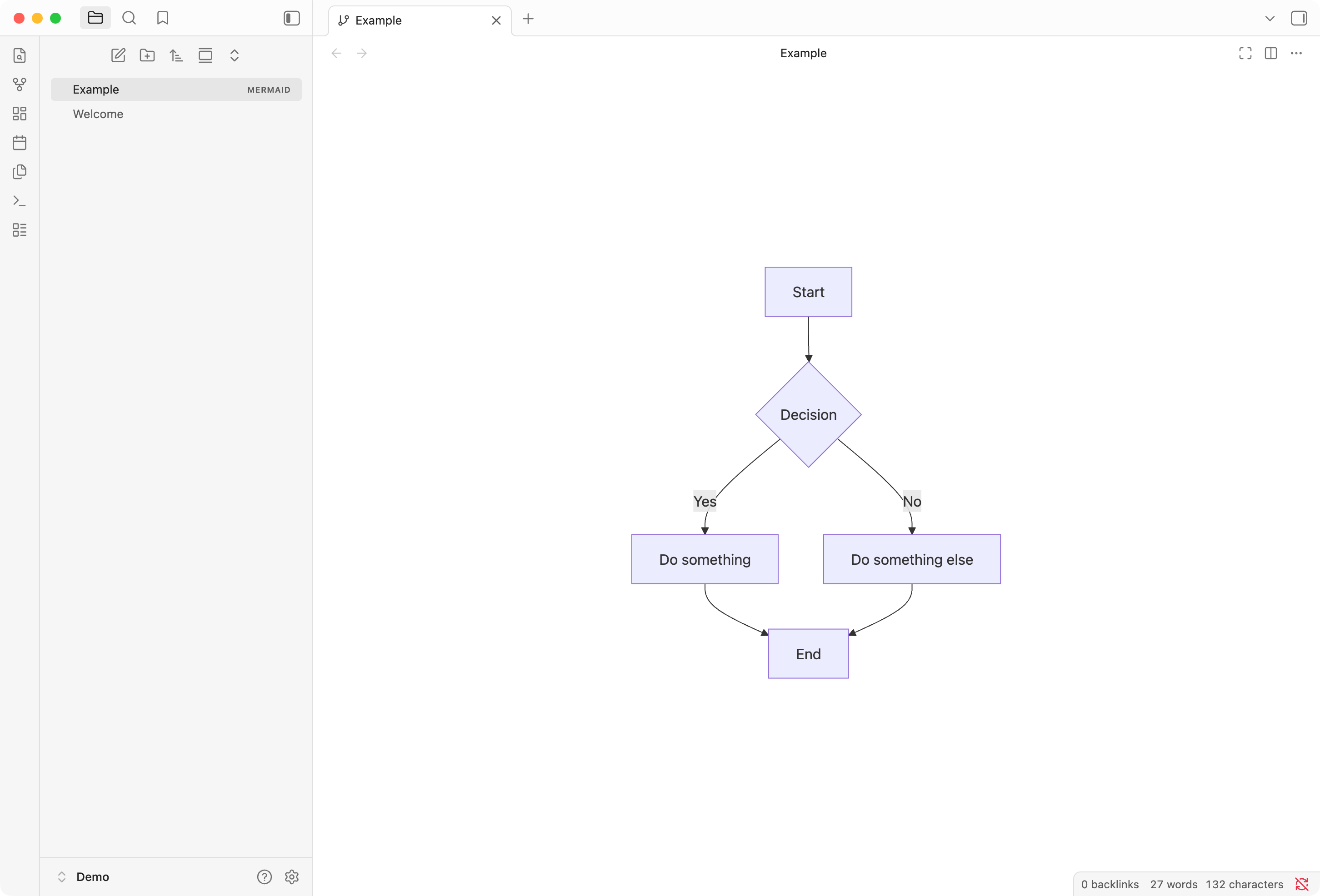
Mermaid View is an Obsidian plugin that brings first-class support for Mermaid diagram files.
Instead of embedding Mermaid code in markdown blocks, you can create dedicated Mermaid files with extension .mermaid or .mmd, and work with them just like any other Obsidian document.
The plugin is available under the MIT license.
Installation
This plugin has been submitted for official inclusion in Obsidian Community plugins, but reviews can take some time. In the meantime, you can install it using one of the methods below.
Using BRAT
BRAT (Beta Reviewers Auto-update Tester) is a plugin that allows you to install plugins not yet included in the official Obsidian community repository. It's commonly used for pre-release versions or testing.
- Install BRAT from the Obsidian Community plugins or from GitHub
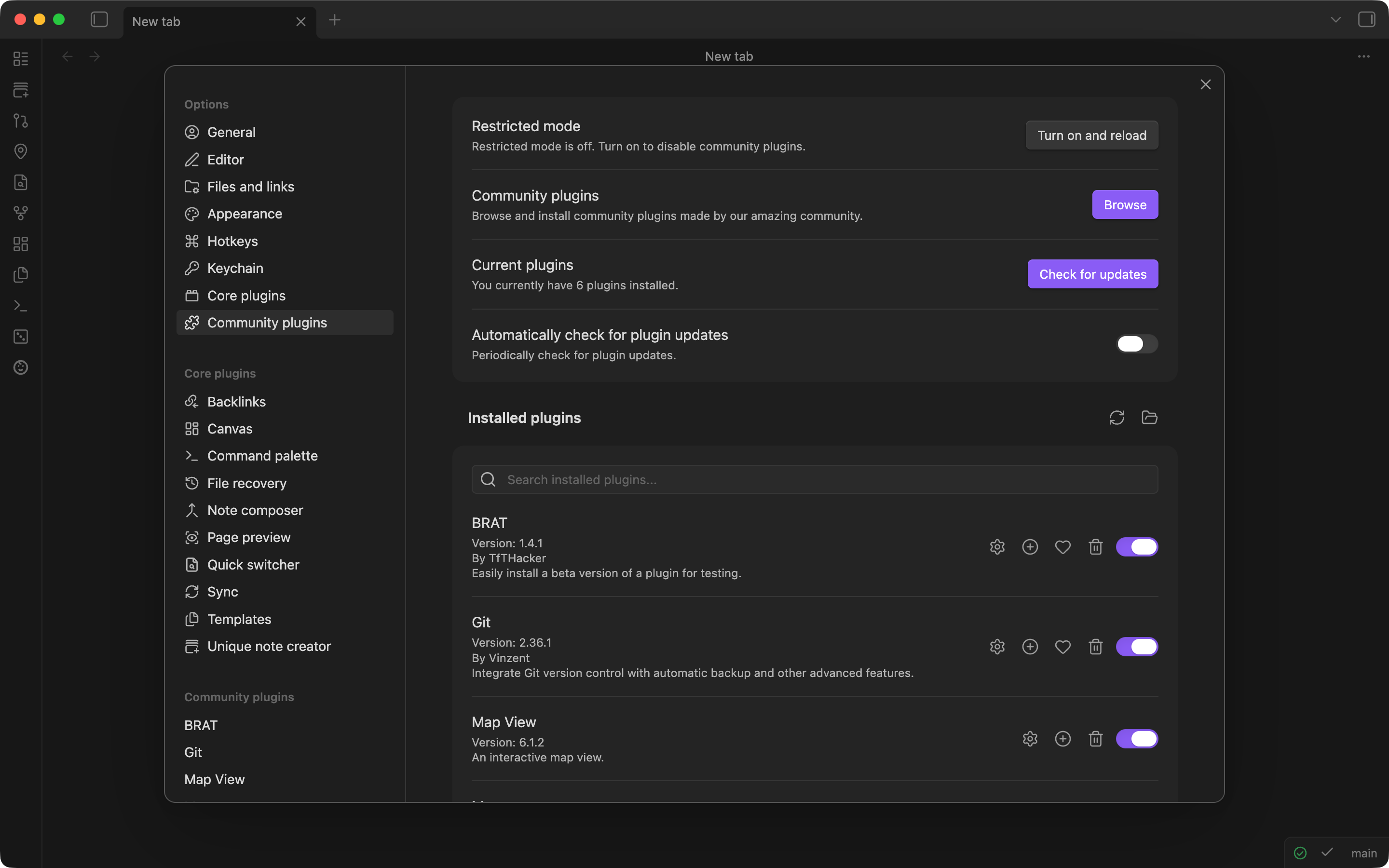
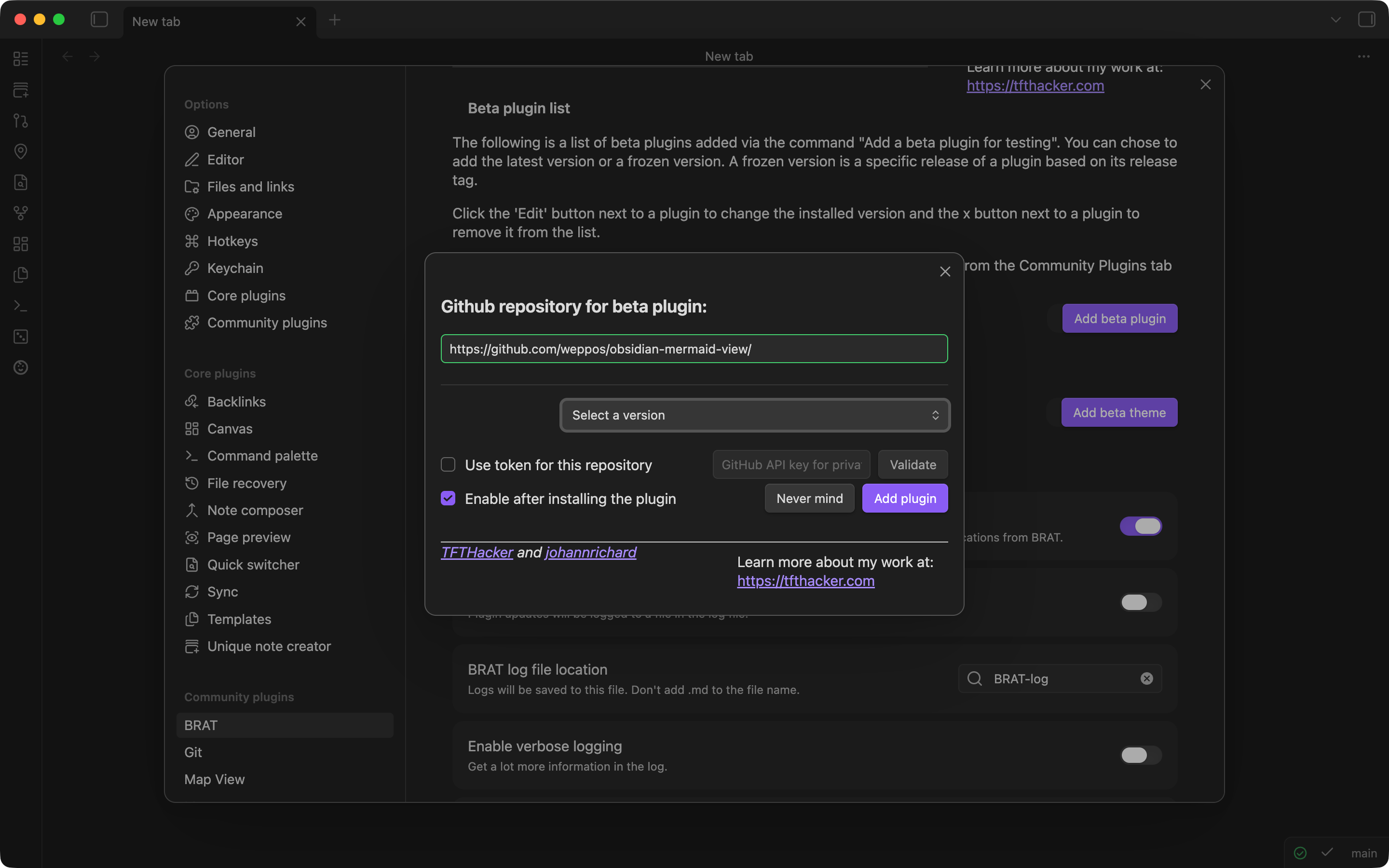
- Open BRAT plugin settings and click "Add Beta plugin"
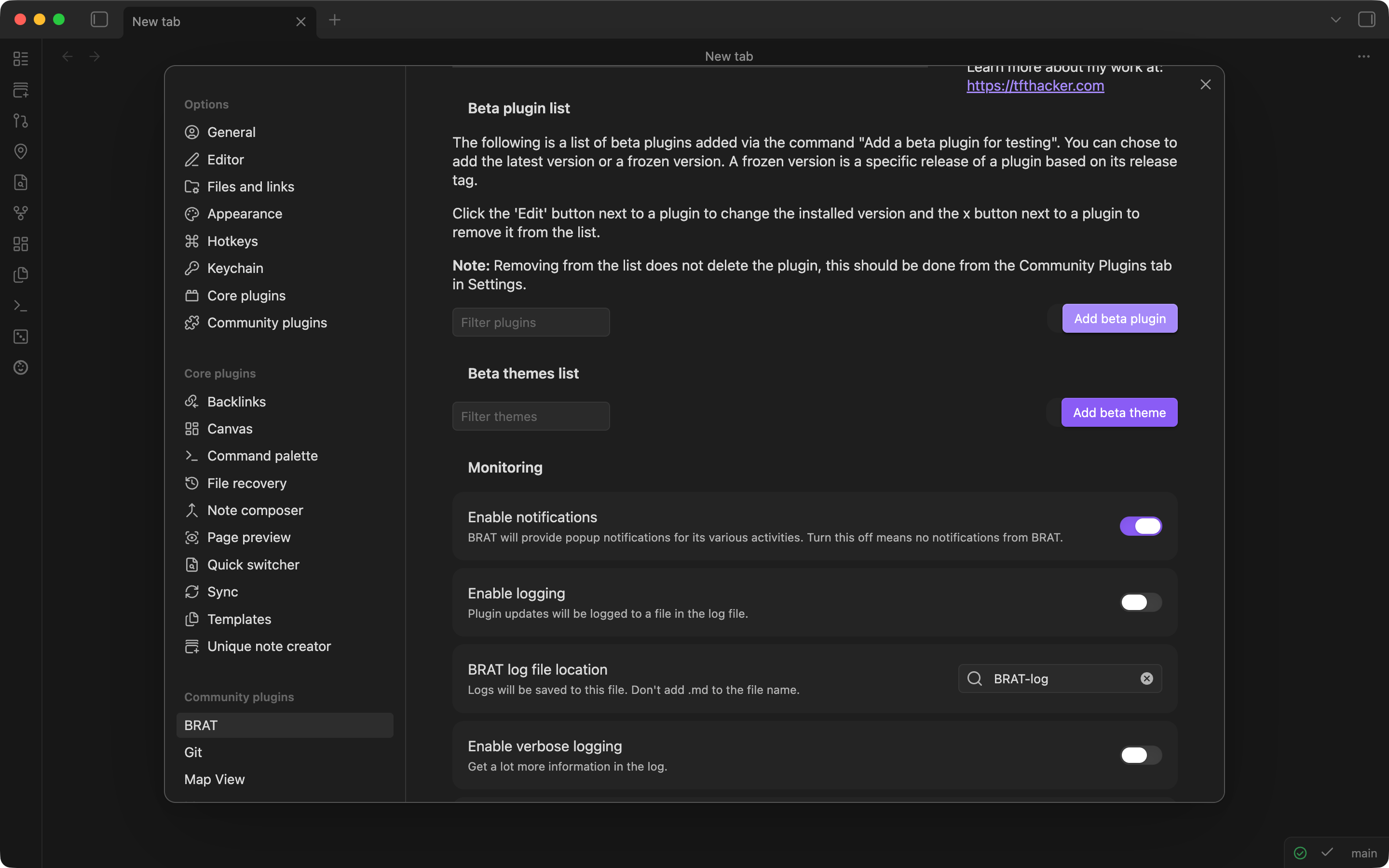
- Enter
https://github.com/weppos/obsidian-mermaid-view/, select a version, and click "Add Plugin"
From Release
- Go to the Releases page
- Download
mermaid-view.zipfrom the desired version - Unpack the archive
- Copy the
mermaid-viewfolder into your vault's.obsidian/plugins/folder (resulting in.obsidian/plugins/mermaid-view/) - Enable the plugin in Settings > Community plugins
Why?
Obsidian supports Mermaid charts natively inside Markdown using code blocks, but it does not treat them as first-class citizens.
Mermaid files cannot be stored as separate files, nor embedded or included using the standard syntax that works for Canvas, Base, or other view types.
I love Mermaid, and I have some fairly complex charts. Too complex to embed in Markdown, and that I also prefer to version separately. This plugin makes Mermaid files a first-class citizen.
Features
- Native file support - Open Mermaid files files (
.mermaidand.mmd) directly in Obsidian, just like markdown or canvas files. - Three view modes - Toggle between preview, split, and source modes.
- Pan and zoom - Navigate large diagrams with mouse wheel zoom and click-drag panning.
- CodeMirror editor - Full-featured editor with line numbers, syntax highlighting, and undo/redo.
- Export diagrams - Save diagrams as SVG or PNG files for use in other applications. PNG export supports configurable background color and scale factor for high-resolution output.
- Embed in notes - Include diagrams in other notes using standard embed Wiki syntax
![[diagram.mermaid]]or Markdown syntax. - Menu integration - Right-click in the file explorer to create a new Mermaid file, or use the Command palette.
Native File Support
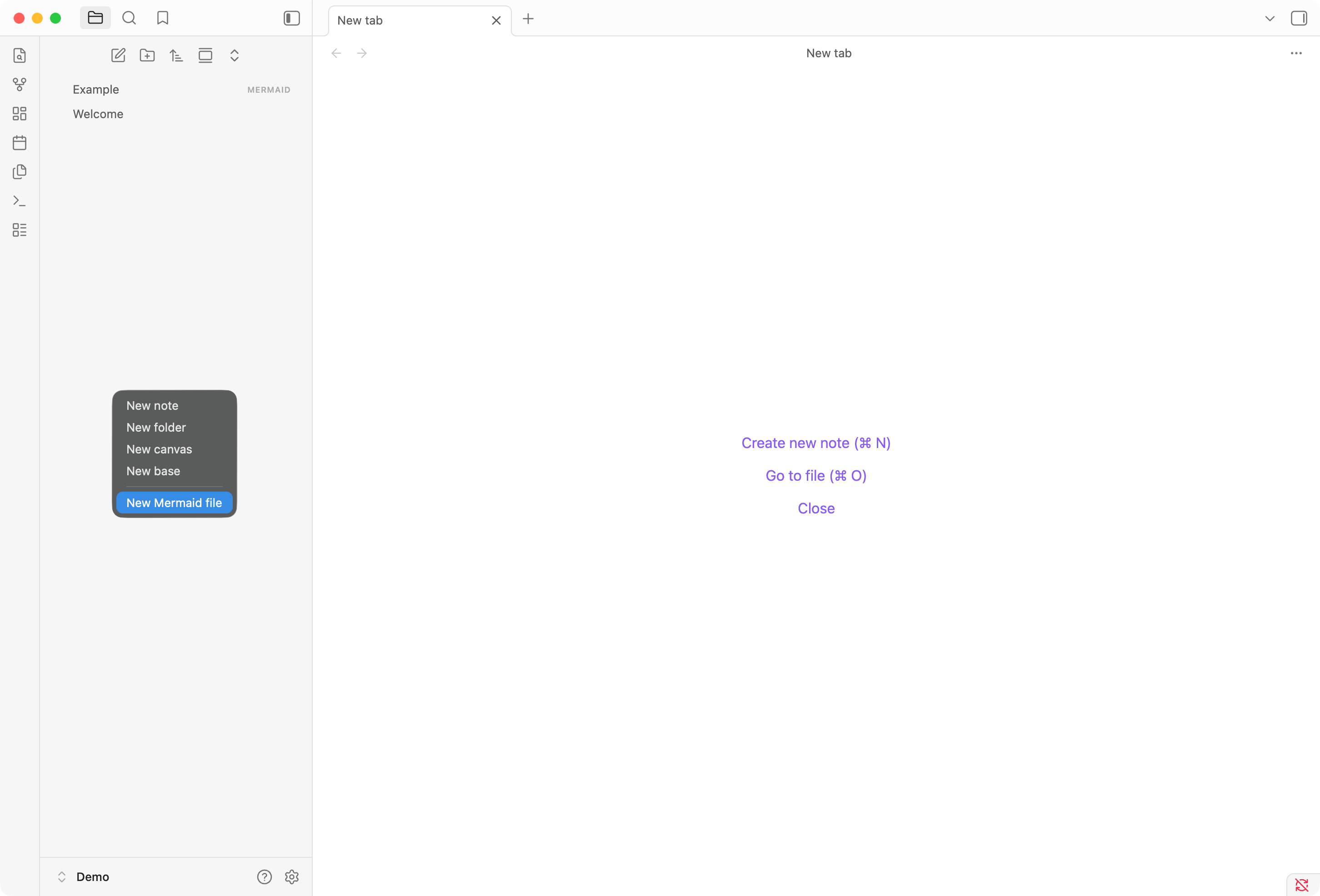
Create and open .mermaid and .mmd files directly in Obsidian. They appear in the file explorer with their own type badge, and you can create new ones from the context menu.
Three View Modes
Toggle between the view mode that suits your workflow:
Preview Mode renders the diagram full-screen, perfect for viewing completed diagrams.
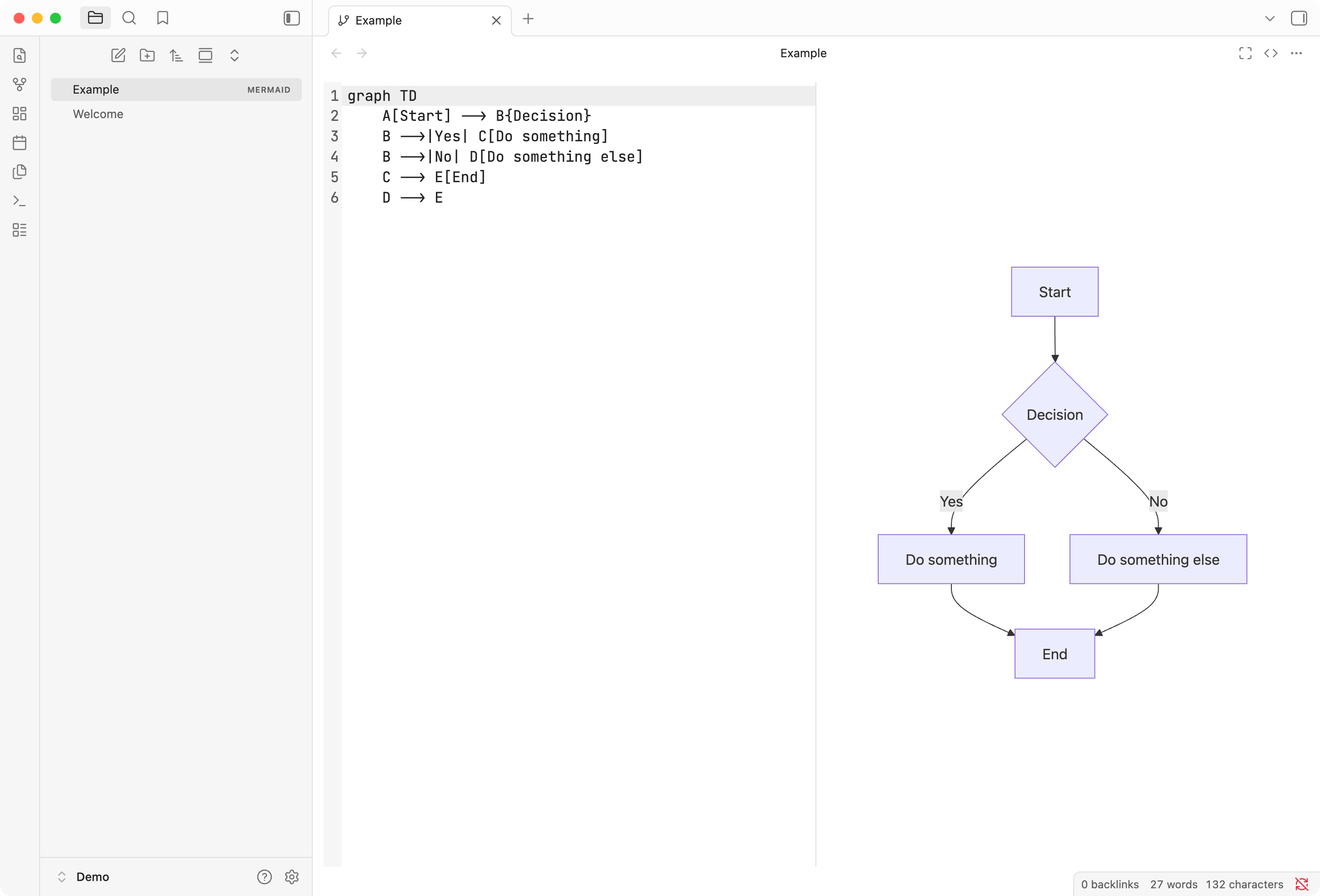
Split Mode shows the code editor on one side and a live preview on the other, ideal for editing.
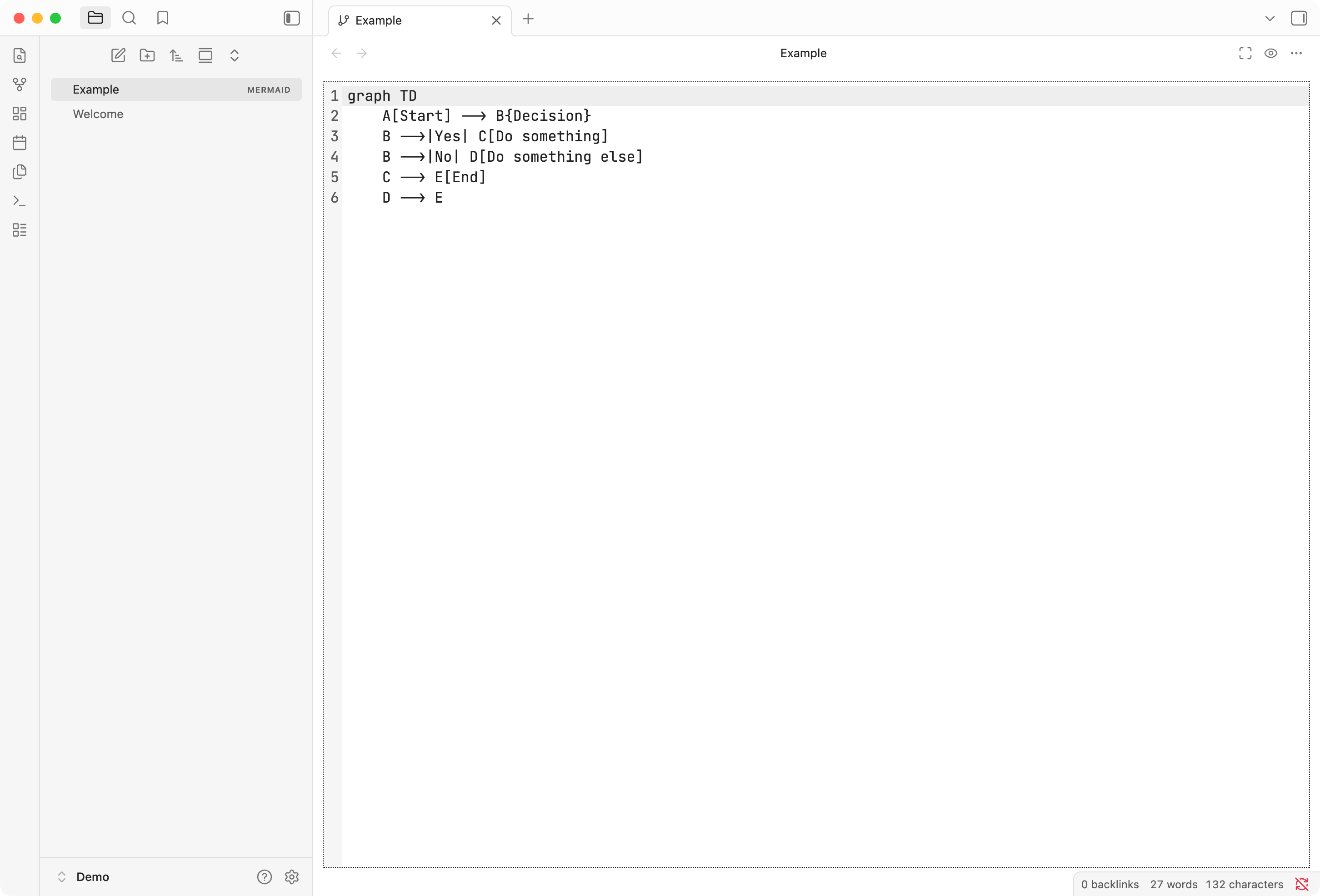
Source Mode provides a full-screen code editor with syntax highlighting and line numbers.
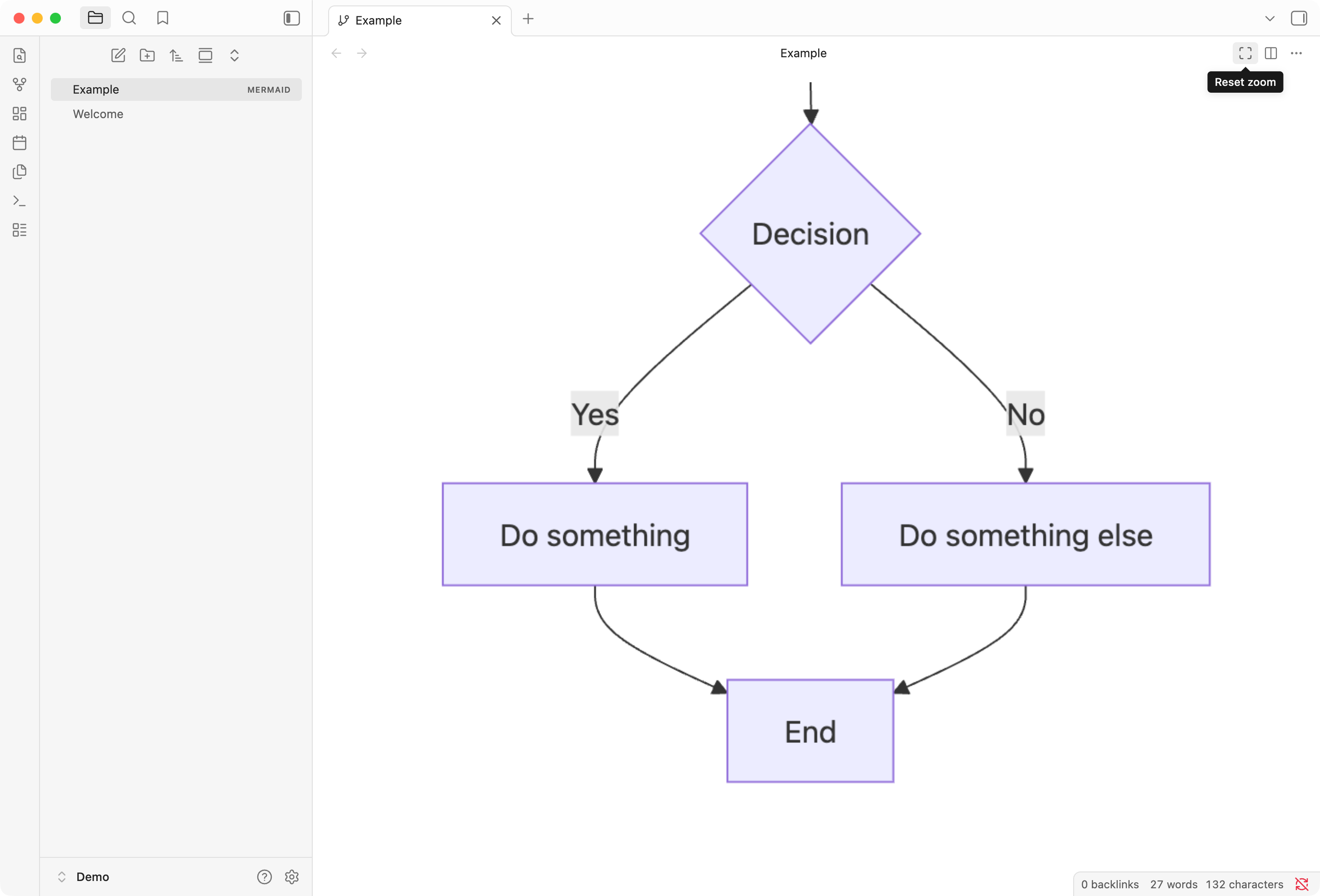
Pan and Zoom
Navigate large diagrams with mouse wheel zoom and click-drag panning. Double-click to reset the view.
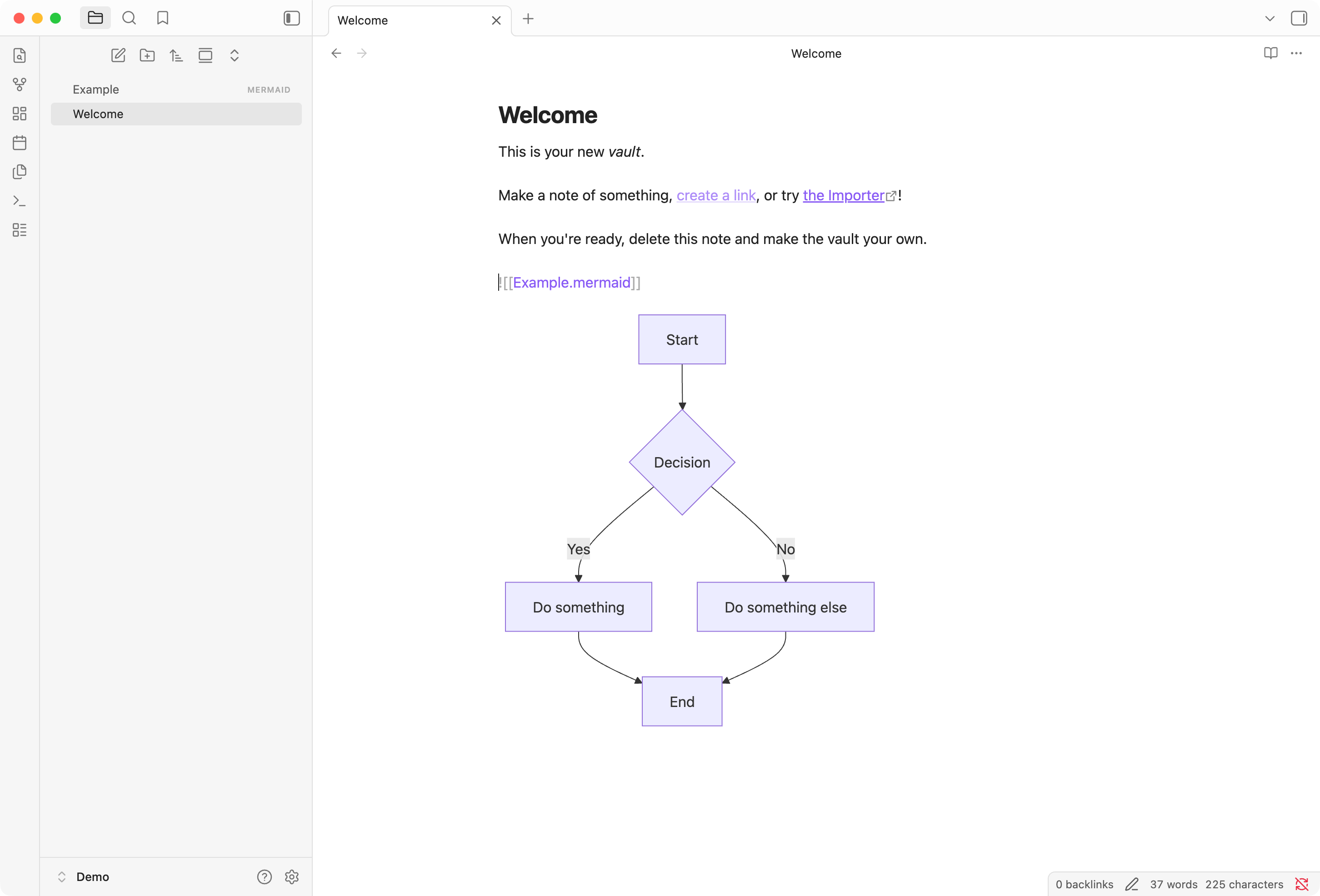
Embed in Notes
Include diagrams in your notes using standard Obsidian embed syntax: ![[diagram.mermaid]]. The autocomplete suggests mermaid files just like any other note.

The diagram renders inline within your note.
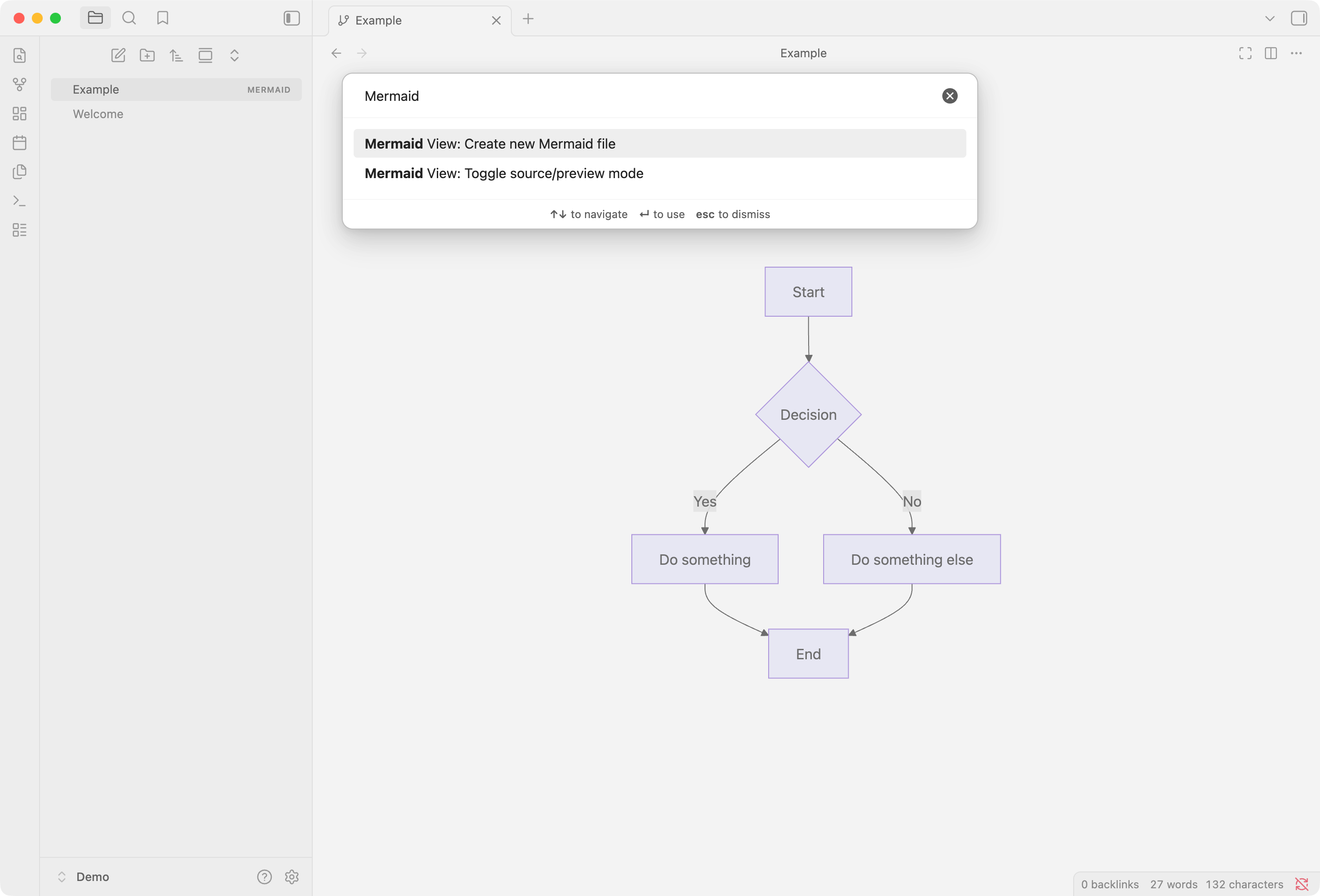
Command Palette Integration
Access all Mermaid View commands through the command palette.
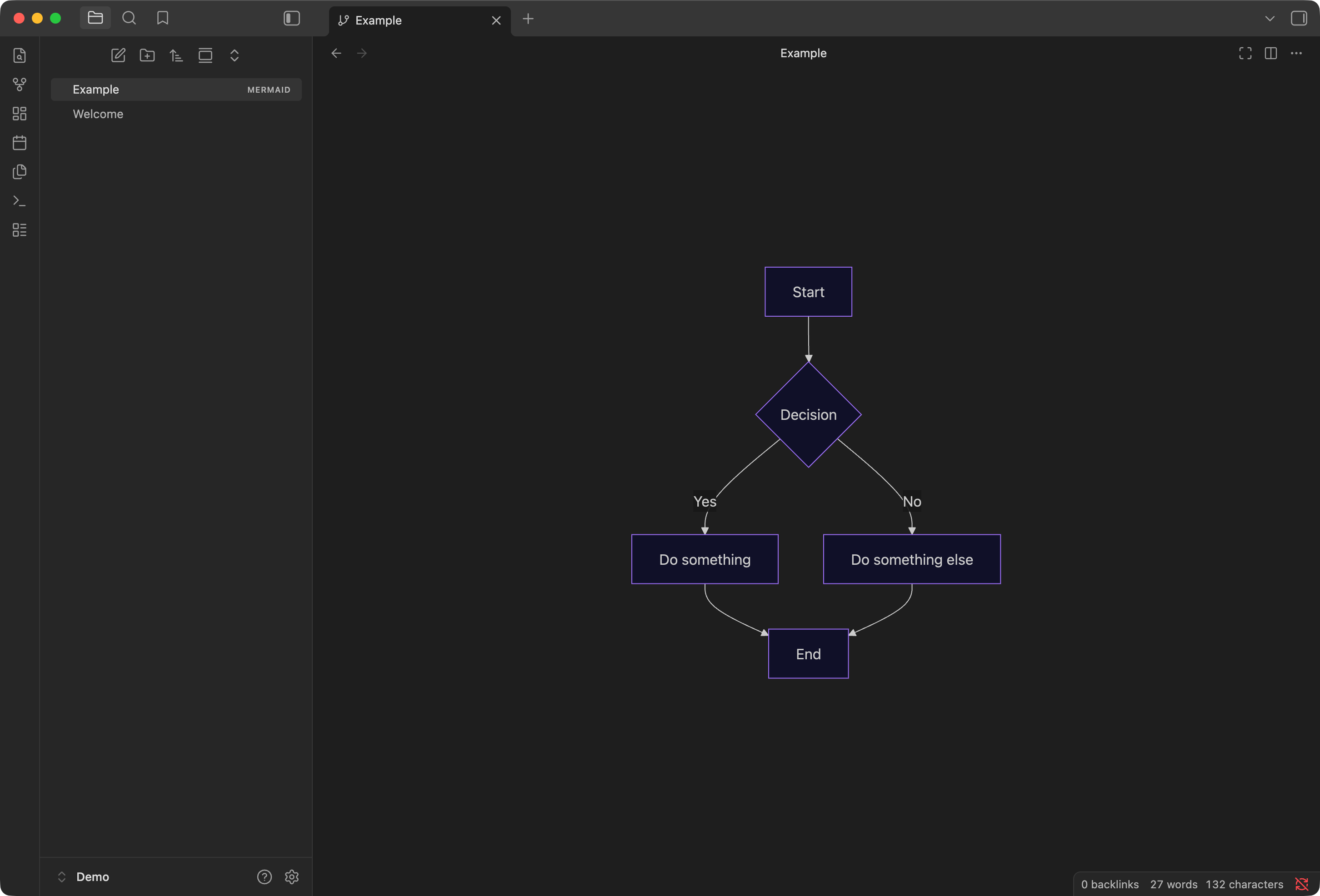
Theme Support
The plugin respects your Obsidian theme, rendering diagrams appropriately in both light and dark modes.
Settings
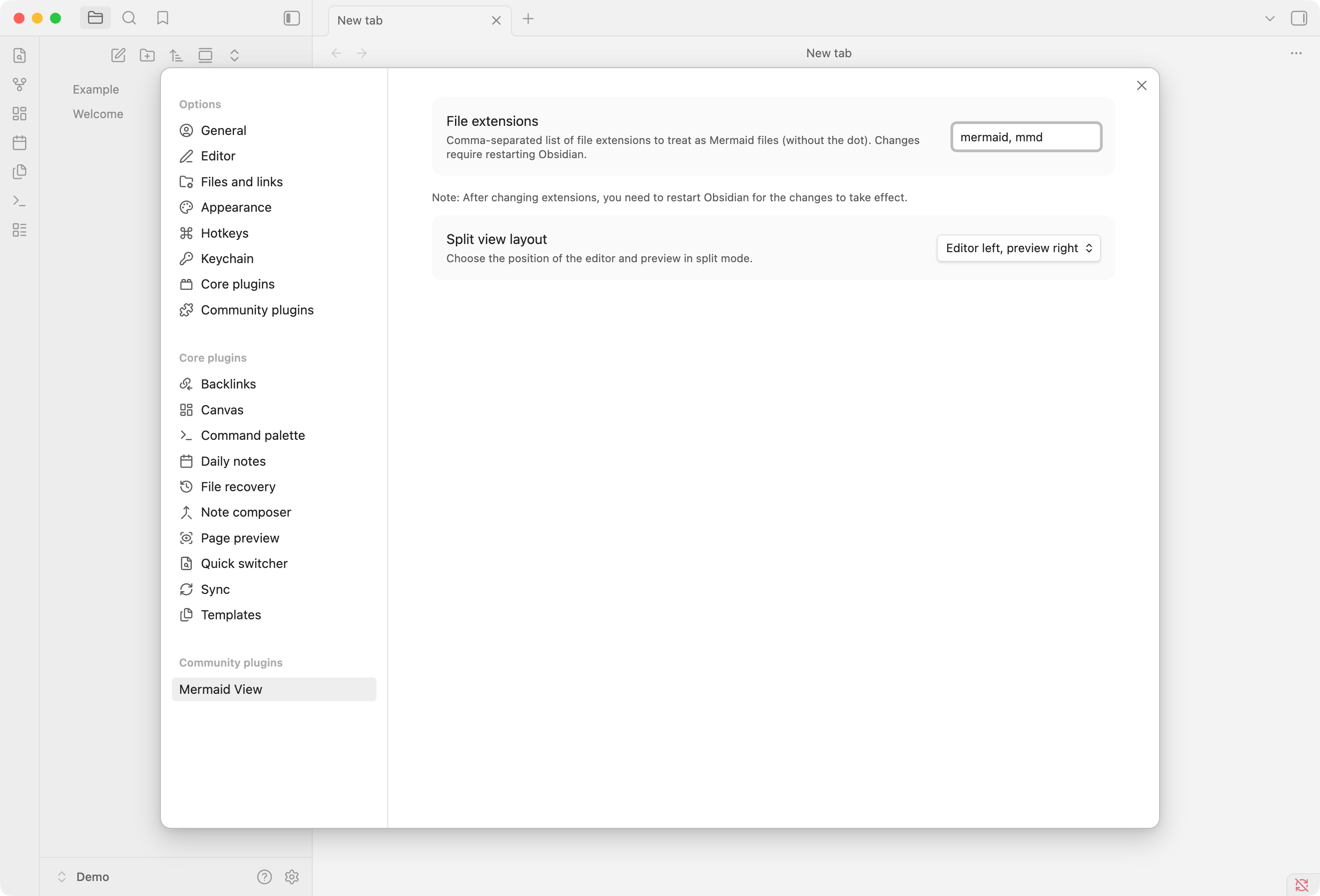
Configure Mermaid View through the plugin settings. You can customize the file extensions recognized as Mermaid files and choose the split view layout.
Editor Font
The code editor in Mermaid View uses Obsidian's monospace font setting. For the best experience, configure a programming font like JetBrains Mono (or your favorite monospace font) in Obsidian's Appearance settings.
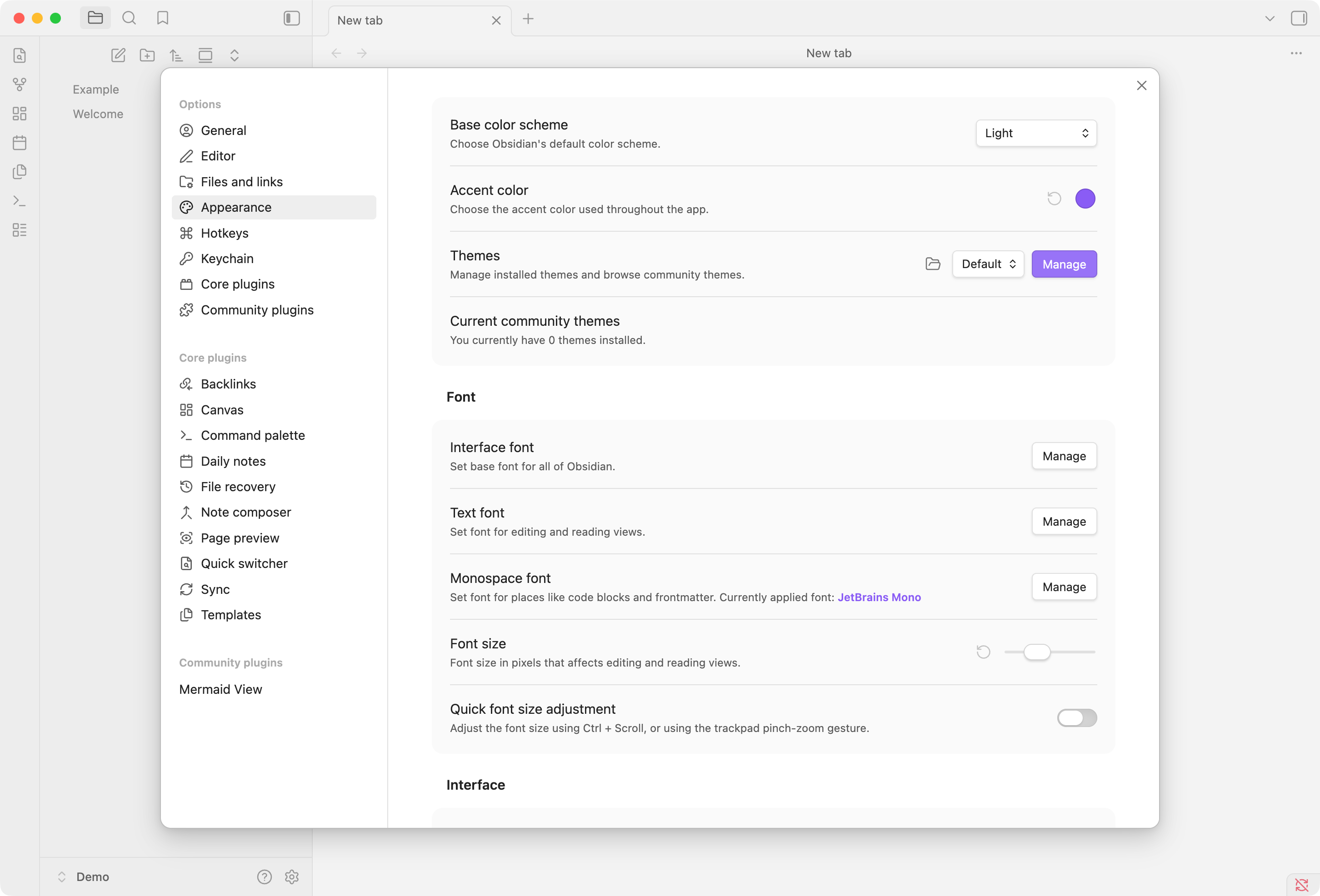
Click "Manage" next to "Monospace font" and add your preferred font.